
This is a re-post from a previous version of The Computer Crowd.
So you are new to Linux and you downloaded PuTTY (or some other client), connected to your server and you have no idea what to do now.
I will go through some of the most used commands and post screen shots of what it will look like. Before we start if you want to know more about a command you can run “command –help” and it will show the man page for the specific command.
This post is not meant to be a catch all for each commands this post is just to give you a general understanding of how to perform common tasks in a BASH session.
Using cd: Changing Directories:
Changing directories is very simple, and probably the most common task you will preform in a BASH session.
cd (cd to the user’s home directory)
cd

cd directory (change to a directory relative to where your at)
cd TestDirectory

cd /home/connor/directory (change directory relative to the filesystem)
cd /home/connor/directory

Using ls: Listing Contents:
Another very common task is listing a directory’s contents.
ls (list current directory)
ls
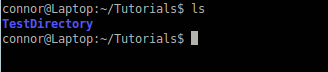
ls directory (list directory relative to where your at)
ls Tutorials/TestDirectory/

ls /home/connor/directory (list directory relative to the filesystem)
ls /home/connor/Tutorials

There are options you can add to your “ls” command
ls -a # (will list all the files in the directory)
ls -la # (will list all the files in the directory in long list format)
Using mkdir: Making Directories:
Okay so you can change directories and list the contents and thats all fine and dandy but what about creating directories? Well yet again this is a simple process.
mkdir (make directory)
mkdir TestDirectory

Using touch: Creating Files:
Now you want to create a file inside that directory.
touch (create file)
touch new_file

Using mv:
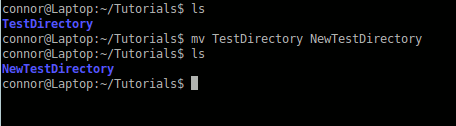
So you want to rename or move a file or directory?
mv (move file / directory)
mv TestDirectory NewTestDirectory
Using rm:
Now you want to delete or remove a file
Note: This perminantly deletes the file and there is no recycle bin like in Windows!
rm (remove file)
rm new_file
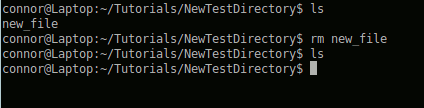
You can not use this method on directories.
rm -r (remove directory)
rm -fr NewTestDirectory
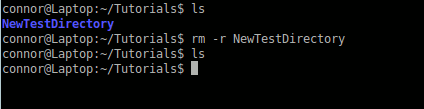
You have to -r the rm command here so that it will recursively remove the contents of the directory.
Using chmod:
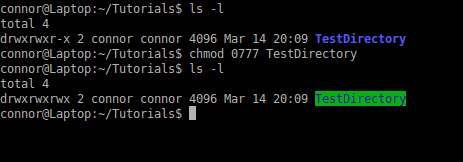
To change file permissions you need to use a chmod command. I suggest you learn more about file permissions by reading this page before you attempt this command.
Note: I never suggest using 0777 I was just using this as an example.
chmod
chmod 0777 TestDirectory
Using chown:
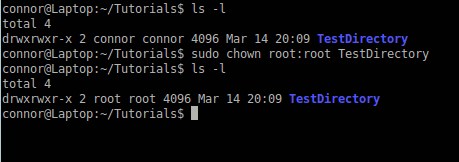
If you want to change ownership of a file or directory you use use the chown command. To chown a file that doesn’t belong to you, you will need to be root (I don’t suggest) or you need to use sudo.
chown
sudo chown root:root TestDirectory
As I stated earlier in this post, this is just a simple overview of some of the most commonly used BASH commands. If you have any questions please comment below or in our forums.
0 comments
Open in the forumSign in to comment.